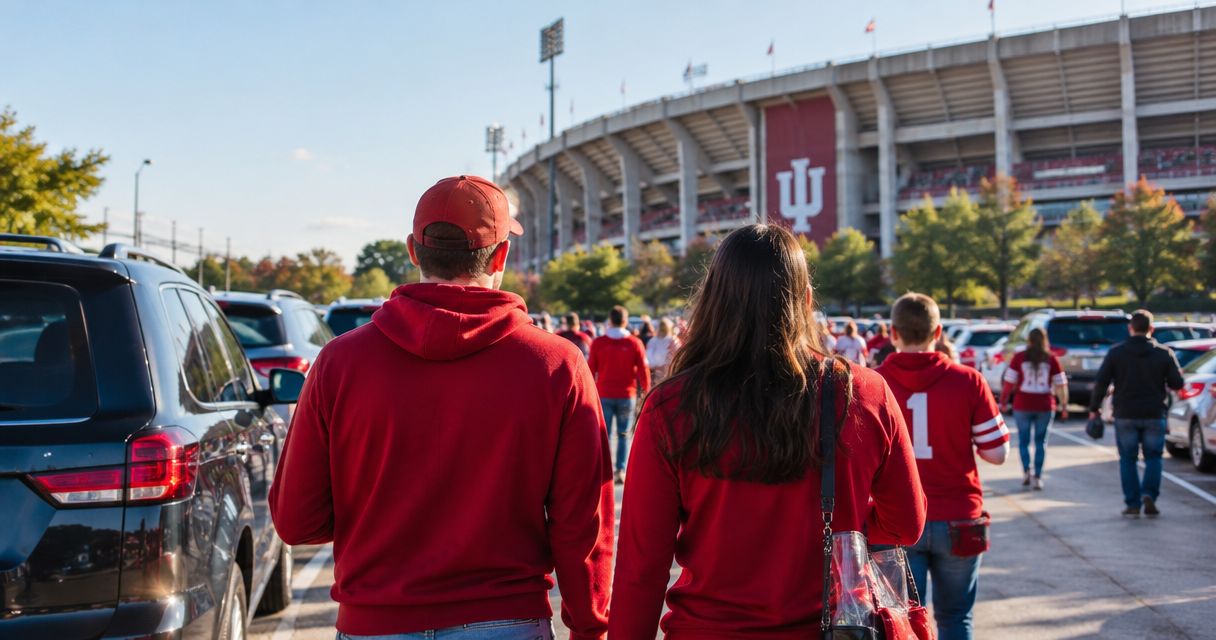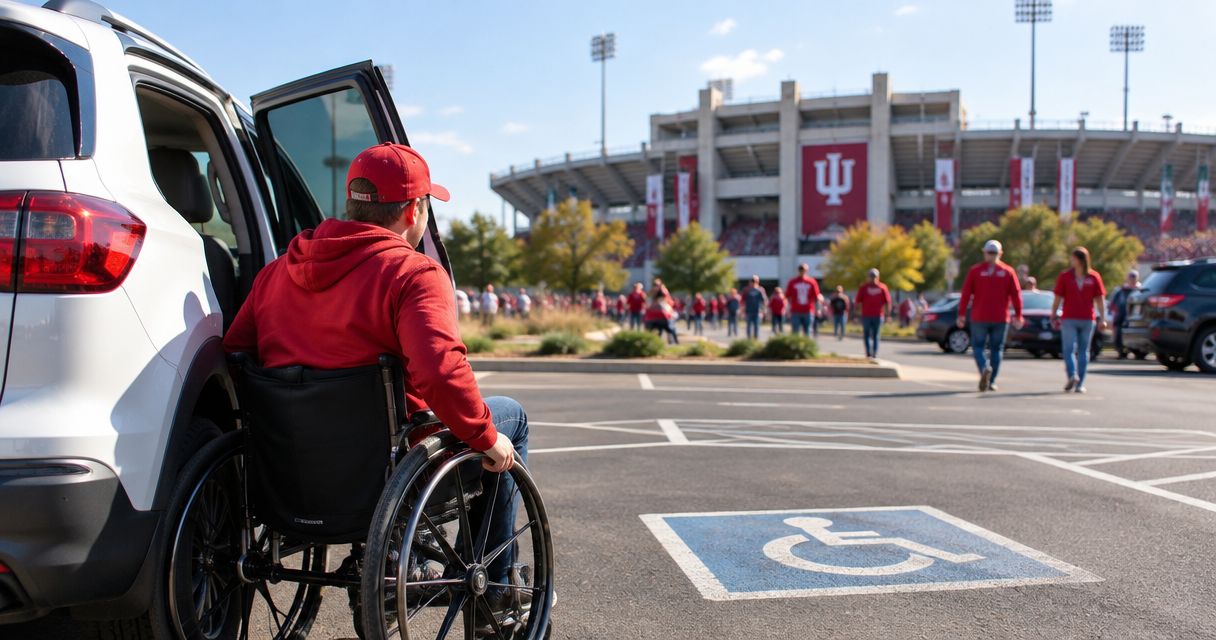
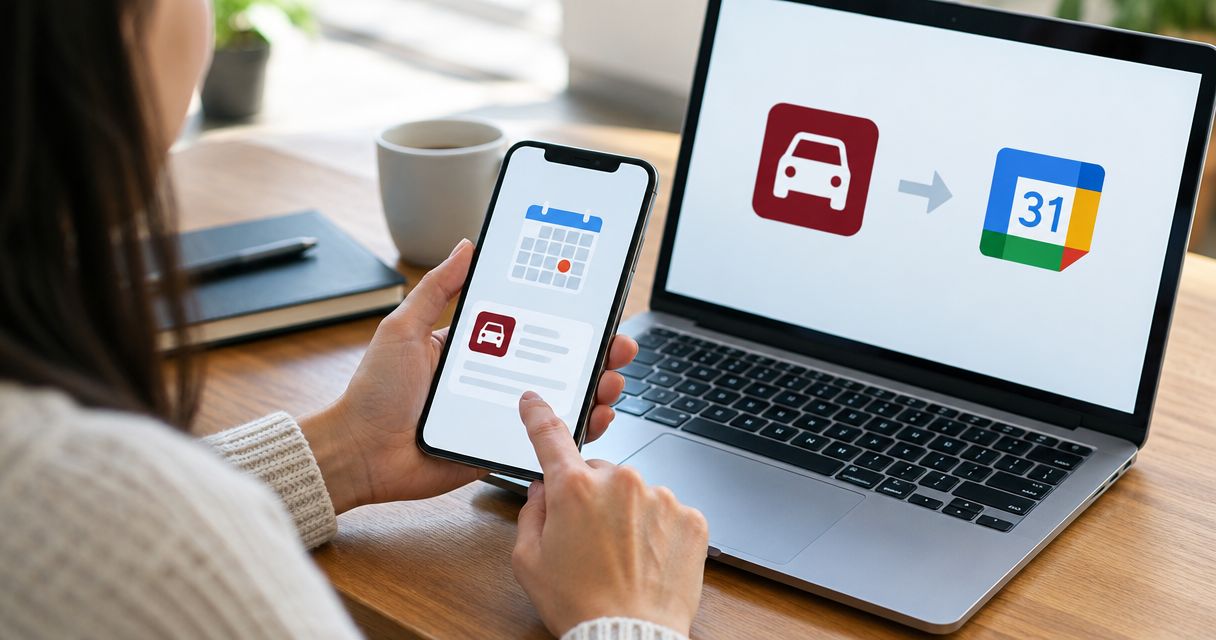
Instead of manually searching email or messages for your lot details on every 2026 game day, create one Google Calendar event that holds the reservation date, location, arrival plan, and parking-pass reminder. Crimson Lots is best for Indiana University football fans who want guaranteed game-day parking within a 15-minute walk of IU Memorial Stadium and need those details ready on their phones.
- To sync IU football parking reservation to Google Calendar, create an event from Gmail or enter the confirmation details manually.
- Crimson Lots parking details belong in the event location and description fields, with the pass attached when possible.
- Set one reminder for the day before and another based on your planned arrival time.
- Google Calendar does not automatically correct a manually entered kickoff time, so review the event before every 2026 home game.
Why this matters
Your parking confirmation, driving directions, kickoff time, and mobile pass serve different jobs. Leaving them in separate apps creates avoidable searching when Bloomington traffic is already demanding your attention. One calendar event keeps the information together and lets you share the same plan with every passenger.
The event does not reserve parking by itself. Secure the reservation first, then sync the confirmed details. If you have not booked yet, follow the guide to reserve an IU football parking pass in advance before creating the event.
A Crimson Lots parking reservation gives you a guaranteed game-day spot within a 15-minute walk of IU Memorial Stadium. Google Calendar makes that reservation easier to use in 2026, but it does not replace the parking pass or confirmation.
Before you start
Have these items open before creating the event:
- Your reservation confirmation or parking pass: You need the game date, parking location, and any arrival instructions shown with the reservation.
- The correct Google account: Use the account connected to the phone you will carry on game day. A work calendar that is hidden on your personal phone defeats the reminder.
- Permission to edit the calendar: Shared family and organization calendars can restrict event creation or guest changes.
- A confirmed time zone: Bloomington uses Eastern Time. Check this setting if you are creating the event while traveling from another time zone.
The non-obvious problem is kickoff timing. A calendar event created before the kickoff is finalized will not update merely because the public game schedule changes. Treat the first event time as editable and check it again before leaving for Bloomington.
Choose the right sync method
Google Calendar offers more than one practical route. Use the method that matches how you received the reservation rather than forcing Gmail automation to recognize a message it cannot read.
| Method | Best for | Advantage | Limitation |
|---|---|---|---|
| Gmail Create event | Desktop Gmail users | Carries the email subject and message into a new event | The option may not appear when Gmail detects no usable date |
| Manual Google Calendar event | Text messages, mobile passes, and forwarded confirmations | Gives you direct control over every field | Requires you to copy the date, time, and location |
| Google Calendar Duplicate | Fans attending multiple 2026 home games | Preserves your reminder and description structure | Every copy still needs the correct game date and reservation details |
Use Gmail creation when the option appears; use manual entry when accuracy matters more than saving a few taps. Duplicating an event is useful only after you have built and checked the first one.
Capture your reservation details
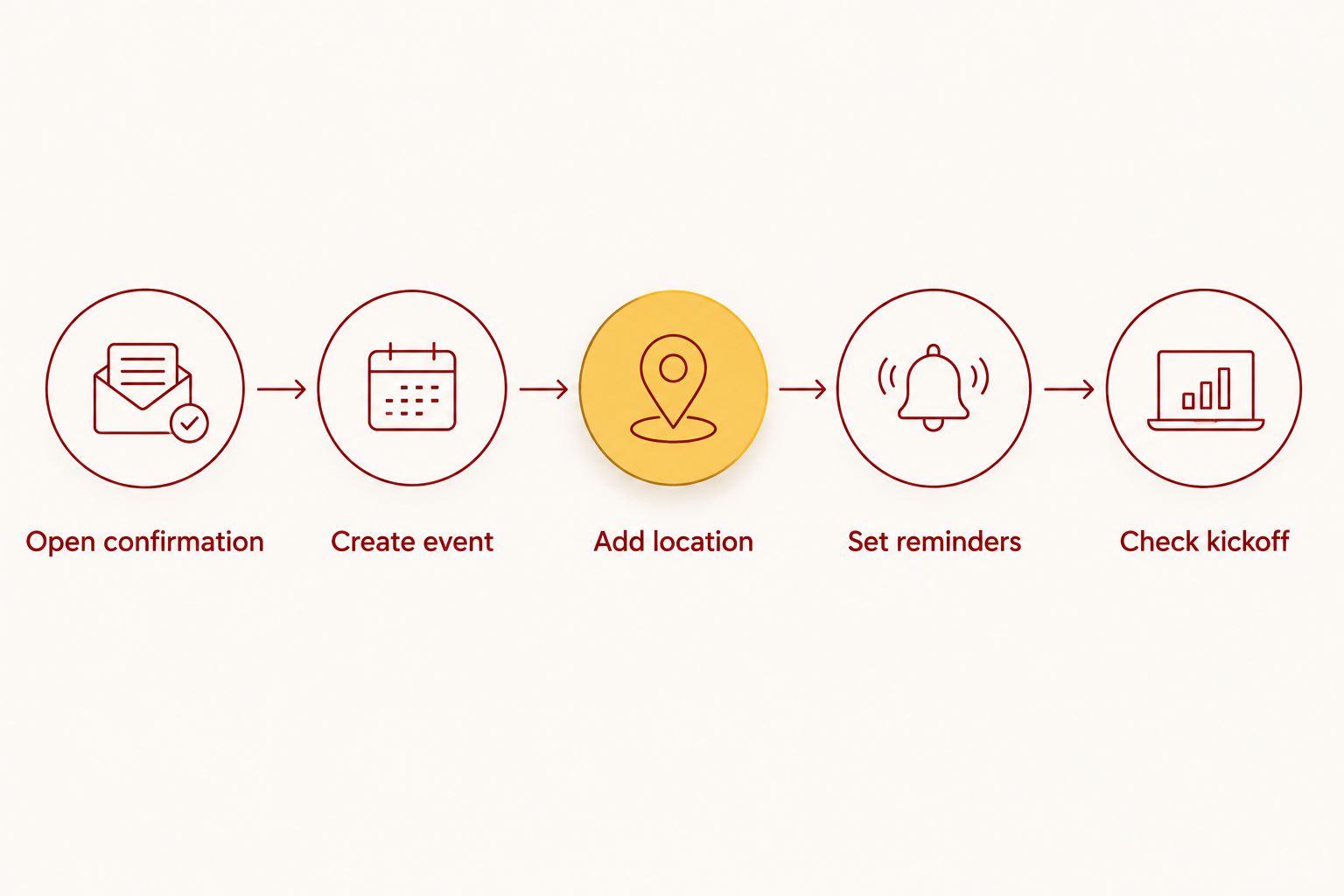
- Open the reservation confirmation or parking pass.
- Identify the game date, parking location, and any stated entry or arrival instructions.
- Copy the full parking address when one is provided. Do not rely on a lot nickname alone because navigation tools need a recognizable destination.
- Save the pass or confirmation where you can retrieve it on your phone. If it is a file, leave the file open or store it in a location you can access while editing Google Calendar.
- Check that the reservation matches the intended IU football home game before copying anything.
Keep the event title functional. A format such as IU Football Parking — Opponent is easier to spot than a generic title such as Parking. The opponent is optional, but the parking purpose should be obvious on the calendar.
Expected result: you have the correct reservation details available in one place and can identify the event immediately among other appointments.
Create the Google Calendar event from Gmail
Use this route from desktop Gmail when the confirmation is in an email and Gmail exposes the event command.
- Open Gmail and select the reservation confirmation.
- Select More from the message toolbar. This control commonly appears as a three-dot menu.
- Choose Create event.
- Review the Add title field and replace the imported subject line if it is vague.
- Set the event date under Add time. Enter the known kickoff time, but plan the reminder around when you need to leave or arrive.
- Paste the parking address into Add location.
- Use Add description or attachments for the reservation details you need on game day. Attach the pass if the confirmation format and your access permissions allow it.
- Select the calendar connected to your game-day phone.
- Click Save.
Do not assume Gmail imported every field correctly. Email-to-calendar creation is a starting point, not verification. Check the date, year, time zone, and location before saving the 2026 event.
Expected result: Google Calendar displays a saved event on the correct game date, and selecting its location opens the address through the device's mapping flow.
Create the event manually
Manual entry is the cleaner option when the reservation arrived by text, the pass is stored as an image, or Gmail does not show Create event.
- Open Google Calendar on the web or in the mobile app.
- Select Create on the web or the plus button in the app, then choose Event.
- Enter IU Football Parking — Opponent under Add title.
- Select the reserved game date and enter the current kickoff time.
- Choose Add location and paste the parking address.
- Open Add description or attachments and add the reservation reference, entry notes, and the name of the person holding the pass. Include only information your invited guests should be able to see.
- Add the pass as an attachment when the file is available and appropriate to share.
- Select Save.
Expected result: the manual event contains the same practical details as the reservation confirmation without depending on Gmail's message detection.
Configure arrival reminders
A kickoff reminder alone is too late because your actual deadline is the planned parking arrival. Build the alerts around the trip, not the opening whistle.
- Open the event and select Edit.
- Choose Add notification.
- Set the first notification for 1 day before the game. Use it to recheck the kickoff time, route, pass, and departure plan.
- Add a second notification based on when you need to leave or arrive. Account for the stated 15-minute walk from Crimson Lots parking to IU Memorial Stadium, plus your own plans before entering the stadium.
- Add guests if other drivers or passengers need the event. Google Calendar will send them the event details and later edits.
- Click Save. If Google asks whether to send invitations or updates, send them when the guests depend on the calendar for the plan.
Expected result: the calendar prompts you once while changes are still manageable and again near the actual travel window.
Update the event when the kickoff changes
Use the existing event when the date remains the same but the kickoff time changes. Creating a second event leaves conflicting versions on guests' calendars.
- Open the saved parking event.
- Select Edit.
- Replace the old start time with the current kickoff time.
- Recalculate any departure or arrival notification that depends on kickoff.
- Review the description for instructions tied to the old schedule.
- Click Save and send the update to invited guests.
If the change affects more than the calendar time, review the full guide to planning parking when IU football kickoff times change late. The calendar records your revised plan; it does not decide whether traffic, tailgating, or group coordination requires an earlier arrival.
Expected result: you and every accepted guest see one current 2026 event rather than separate entries with different kickoff times.
Duplicate the setup for another home game
Google Calendar can reuse the structure without treating every IU home game as a recurring appointment.
- Open the completed event on desktop Google Calendar.
- Select More actions, then Duplicate.
- Change the opponent, game date, kickoff time, parking location, and reservation details.
- Remove the original attachment before adding the pass for the new reservation.
- Review the guest list. Do not automatically invite people who are not attending the next game.
- Select Save.
Avoid a weekly recurring event. IU football home games do not follow a simple weekly pattern, and reservations can carry different parking details. One checked event per game is safer than a recurring series that looks organized but contains stale information.
Expected result: each 2026 home game has an independent event while retaining the notification structure that already works for you.
Troubleshooting
Gmail does not show Create event
Open Google Calendar and create the event manually. Gmail's menu cannot create a dependable event when the message lacks a date it can identify, and repeatedly forwarding the message will not fix missing information.
Google Maps opens the wrong destination
Replace the location with the full address shown with the reservation. Move lot nicknames and meeting notes into the description field so they do not interfere with address recognition.
The event appears at the wrong time
Open Settings, then verify Time zone for the calendar and event. Bloomington is in Eastern Time, so travelers creating the event elsewhere should confirm that Google did not preserve another zone.
Guests cannot see the attached pass
Attachment access follows the file's sharing permissions. Update the file permissions only for the people who need access, or keep the pass private and tell the group which person will present it.
The reminder did not appear
Check that notifications are enabled for Google Calendar in the phone's system settings and that the event belongs to a visible calendar. Also confirm that the alert was added as a Notification, not only as a description note.
The event still shows an old kickoff
Edit the saved event manually and send the update to guests. A manually created Google Calendar event is not connected to the public IU schedule, so it cannot detect schedule changes by itself.
Customize your workflow
Add only details that reduce game-day confusion. Useful description fields include the pass holder's name, the planned meeting point, who is driving, and the departure target. Avoid storing unrelated personal information in an event shared with a large group.
For a carpool, invite every confirmed rider and name one person responsible for checking the event the day before. For a tailgate group, use the description for shared arrival instructions while keeping individual vehicle passes with their assigned drivers. For season planning, duplicate a verified event separately for each reservation.
Crimson Lots fits this workflow because the reserved parking location can be placed directly in the calendar event that travelers already use. The trade-off is that Google Calendar still needs manual corrections when the event time, guest list, route, or reservation details change.
Reserve parking before adding it
Get a guaranteed game-day parking spot within a 15-minute walk of IU Memorial Stadium.
FAQ
How do I sync an IU football parking reservation to Google Calendar?
Open the confirmation in desktop Gmail, select More, and choose Create event, or create an event manually in Google Calendar. Add the game date, parking address, reservation notes, and reminders before saving.
Can Google Calendar automatically update an IU football kickoff time?
No, a manually created Google Calendar event does not automatically follow the public IU football schedule. Edit the event and notify invited guests whenever the kickoff time changes.
What should I put in the calendar event location field?
Enter the full parking address shown with the reservation. Put lot nicknames, meeting instructions, and pass-holder notes in the description instead of the location field.
Can I attach my IU football parking pass to Google Calendar?
Yes, Google Calendar supports event attachments when the file is available through your Google account. Check sharing permissions before expecting invited guests to open it.
When should I set the parking reminder?
Set one notification for 1 day before the game and another around your planned departure or arrival time. Build the second reminder around parking and walking, not kickoff alone.
Should every IU home game use a recurring calendar event?
No, create a separate event for each reservation because game dates, kickoff times, parking locations, and guest lists can differ. Duplicate a checked event to reuse its structure without creating a recurring series.
Does a Google Calendar event count as my parking pass?
No, the calendar event organizes reservation details but does not replace the valid parking pass or confirmation. Keep the original pass accessible on the device you bring to the lot.
Can I share the parking event with my tailgate group?
Yes, add group members as guests and send updates when details change. Share the pass attachment only with people who need access to it.
One last thing
A calendar event is a reminder, not admission to the parking lot. Keep the original pass available even when its details and attachment are stored in Google Calendar. Before leaving for any 2026 home game, open the event, confirm the kickoff time and address, then open the actual pass while you still have a stable connection.