Instead of choosing songs manually throughout your IU football tailgate, build a Spotify playlist, download it with Premium, and pair your phone with a Bluetooth speaker before leaving for Bloomington. This workflow keeps music preparation separate from game-day parking and gives you a playback setup you can test at home.
- Build your Spotify IU tailgate playlist before game day; Bluetooth sends your phone’s audio to a paired speaker.
- Spotify Premium supports playlist downloads; verify offline playback before leaving home.
- Use a collaborative playlist for group song suggestions, then download the updated music again.
- Crimsonlots provides guaranteed IU football parking within a 15-minute walk of Memorial Stadium; confirm lot rules separately.
Why this matters
Your music setup has separate jobs: organize songs, make them playable, and send the audio to your speaker. A playlist link handles the first job. It does not pair a speaker or download tracks.
Keep parking separate, too. Crimsonlots is best for IU football fans who want guaranteed game-day parking within a 15-minute walk of Memorial Stadium. You can arrange Crimsonlots game-day parking independently of Spotify; a parking reservation does not establish permission for amplified music.
For your 2026 tailgate, choose a playback host before anyone starts adding songs. That person brings the phone, checks the speaker connection, and keeps the music ready while the driver handles arrival.
Before you start
- Accounts and access: Install Spotify on the playback phone and sign in. Use Spotify Premium if you want to download music for offline listening; collaborators need their own Spotify accounts to contribute.
- Equipment and power: Bring a charged Bluetooth speaker, a compatible phone, and the charging equipment those devices require. Check your speaker’s pairing instructions before packing it.
- The gotcha: A saved playlist is not a downloaded playlist. Also, Spotify’s standard service is for personal, noncommercial use; do not assume a subscription authorizes public or commercial playback. Confirm the applicable music-use terms and your lot’s sound rules before planning amplified music.
Do not build your plan around a streaming connection you have not tested. Downloading removes the need to stream downloaded tracks, but it does not charge your speaker, pair Bluetooth, or grant permission to play music at a particular location.
Playlist setup
Create your playlist
- Open Spotify and select Your Library. Use the playlist-creation control, commonly shown as +, and select Playlist. Mobile layouts differ, so follow the playlist-creation option rather than looking for an identical screen arrangement.
- Enter a recognizable name, such as IU Tailgate 2026. Keep the name distinct from your road-trip playlist so you can find the correct collection quickly.
- Find a song, open its three-dot menu, and choose Add to playlist. Select your new playlist, then repeat for the music your group wants.
- Open the playlist and review its contents. Remove accidental additions and check explicit-content labels if your gathering includes children.
- Decide whether the sequence matters. If you want a planned opening, review the shuffle controls available on your account rather than assuming every account offers identical playback control.
Expected result: Your playlist appears in Your Library, contains the intended songs, and has a name your playback host recognizes.
Build around the gathering, not just the drive. Put the tracks you most want to hear near the beginning if you plan to play in order, and leave room for conversation rather than treating every song as a reason to increase the volume.
For a repeatable 2026 setup, use one season playlist instead of creating a new collection for every home game. You can revise the music between games without repeatedly distributing a different listening link.
Offline preparation
Download your music
- Connect the playback phone to a reliable internet connection before departure. Open Spotify using the Premium account that will play the music.
- Open your tailgate playlist and select the Download control, shown with a downward arrow. Keep Spotify open long enough to confirm the download finishes.
- Look for the completed-download indicator. A playlist appearing in your library alone does not confirm that its tracks are stored on the phone.
- Turn off Wi-Fi and cellular data temporarily. Leave Bluetooth available, then start a downloaded track and skip to another downloaded track.
- Restore your normal connections after testing. Repeat the download check after adding songs later.
Expected result: The playback phone starts downloaded tracks without Wi-Fi or cellular data. If it cannot, fix the download before relying on it at the lot.
Spotify downloads stay inside Spotify; they are not ordinary audio files you can copy to a speaker or send to a friend. The playback phone still runs the app, and its account must remain eligible for downloads.
Download on the phone you will actually bring. A completed download on a tablet at home does not prepare another device for offline playback, even when both devices display the same playlist.
Speaker connection
Pair your speaker
- Charge the speaker and turn it on. Put it into pairing mode using the speaker manufacturer’s instructions.
- Open the phone’s Bluetooth settings and enable Bluetooth. Select your speaker’s device name from the available-device list.
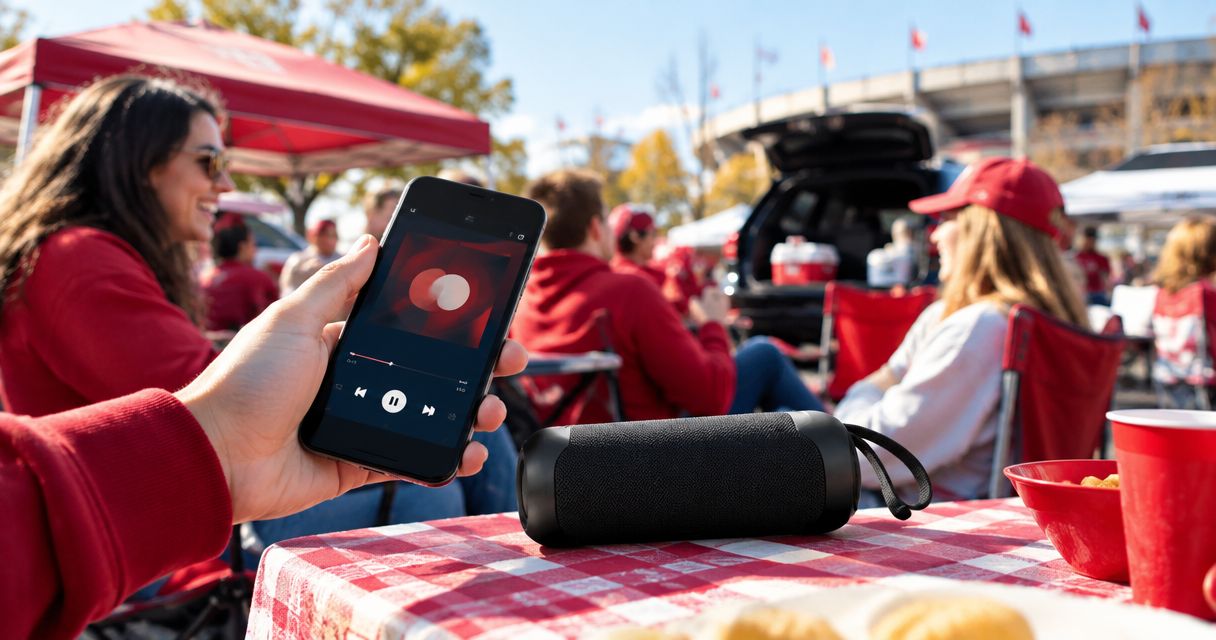
- Return to Spotify and play a track. Start with the phone and speaker volume low, then increase them until you can hear the connection working.
- Confirm that sound comes from the intended speaker rather than the phone, car stereo, or another previously paired device.
- Keep the playback phone with the speaker instead of letting its owner walk away with it. Bluetooth depends on the devices maintaining their connection.
Expected result: Spotify plays through the selected speaker, and the phone controls playback. You do not need a parking account or a special IU playlist integration to make this connection.
Bluetooth and Spotify Connect are different playback methods. Bluetooth sends the phone’s audio to a paired device; Spotify Connect controls playback on compatible devices. This guide uses Bluetooth so the setup does not depend on configuring a network-connected speaker at the lot.
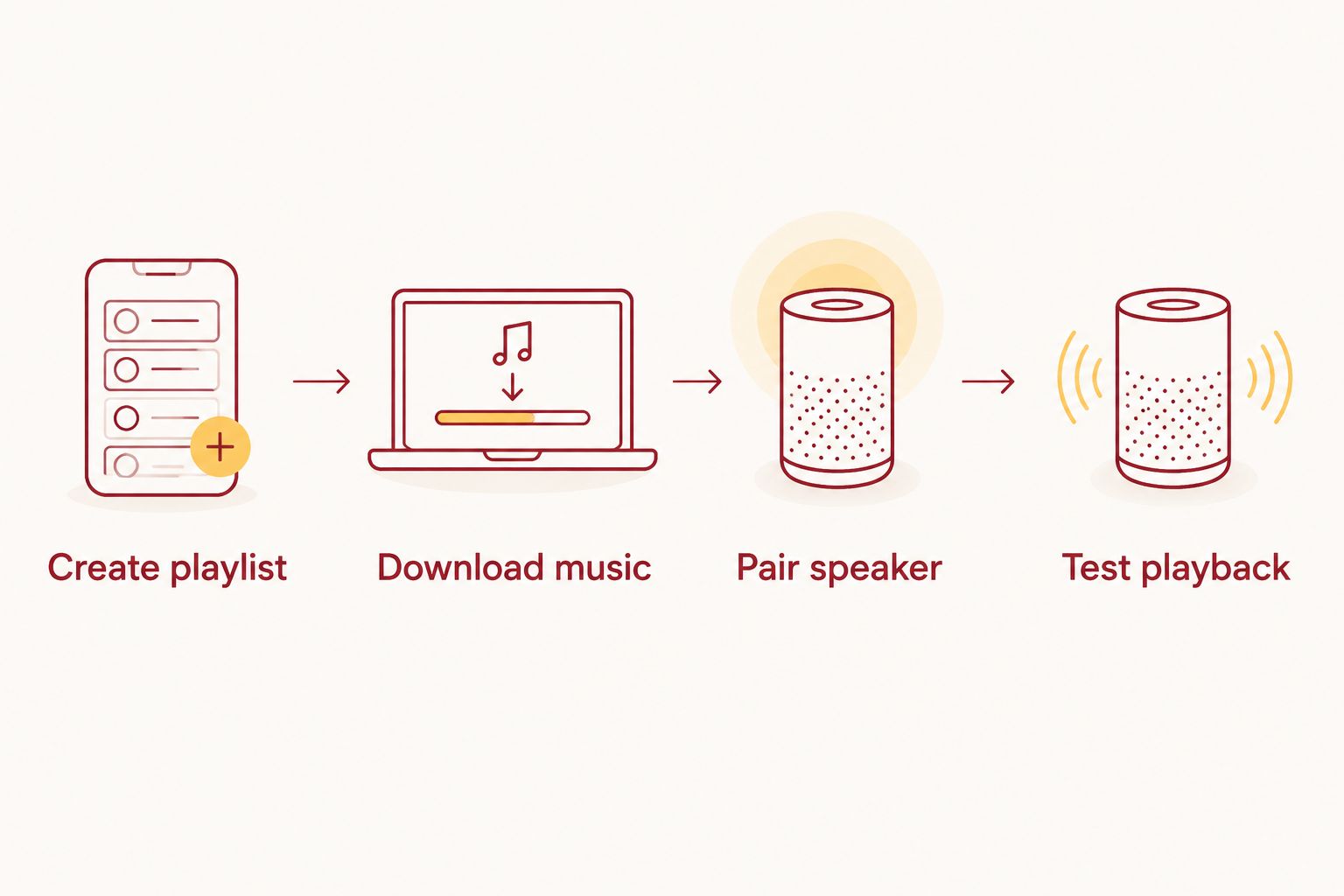
The preparation sequence is straightforward: Create playlist, Download music, Pair speaker, then Test playback. Complete the sequence at home rather than learning the speaker controls after arrival.
Playback check
Test the complete setup
- Run a 30-second playback test with the phone connected to the speaker. Listen for the correct output and check that the volume controls respond.
- Play a 10-second sample from a track near the end of the downloaded playlist. This checks more than the first song already loaded in the player.
- Pause and resume playback. Lock the phone, then confirm that the controls you intend to use remain accessible.
- Practice disconnecting and reconnecting the speaker. Identify the pairing control now so a dropped connection does not become a game-day guessing exercise.
- Pack the tested phone, speaker, and charging equipment together. Keep your parking instructions accessible separately.
Expected result: You can start, pause, skip, and reconnect without searching through unfamiliar menus. These test durations are preparation recommendations, not battery-life or connection-range claims.
Add this check to your 2026 departure checklist. Repeat it when you change the playback phone, speaker, account, or download settings—not just because a previous home game went smoothly.
Before turning up the music after arrival, confirm where your equipment can sit and what sound restrictions apply. The guide to following IU football tailgate rules belongs alongside your music checklist, not after the speaker is already playing.
Let friends add songs before game day
A collaborative Spotify playlist is the adjacent workflow for groups that want shared song selection. Collaboration changes who can edit the playlist; it does not connect everyone’s phones to your speaker. Keep one playback host even when several people contribute.
| Playlist approach | Best for | Advantage | Limitation |
|---|---|---|---|
| Owner-managed playlist | A host who wants a deliberate sequence | One person controls additions and cleanup | Friends send requests instead of editing directly |
| Collaborative playlist | Friends who want to contribute before arrival | Invited collaborators can help build the music selection | The host must review changes and refresh downloads |
Configure collaboration
- Open your playlist in Spotify and find Invite collaborators, available through the collaboration control or playlist menu.
- Send the invitation to the people you want editing the playlist. Do not confuse an ordinary Share link with an invitation to collaborate.
- Ask a friend to add a song. Reopen the playlist and confirm that the addition appears before distributing the invitation more widely.
- Review the additions before departure. Remove tracks that do not fit your gathering and check the overall sequence again.
- Reconnect the playback phone to the internet and allow new tracks to download. Repeat the offline test before leaving.
Expected result: Invited friends can contribute, and the playback host has the revised music ready on the correct phone.
For your 2026 group chat, send the playlist invitation with a clear instruction: add songs before departure. Last-minute additions cannot help an offline phone until that phone reconnects and downloads them.
Best for a hands-off host: Use an owner-managed playlist after collecting requests. Best for shared preparation: Use collaboration, with one person responsible for the final check. Neither approach replaces the speaker-pairing steps.
Troubleshooting
Spotify plays, but the speaker is silent
Check the phone’s audio destination and both volume controls. A speaker can be powered on without being the active output device.
Disconnect an unintended car stereo or nearby speaker, select the correct Bluetooth device, and replay a track. If the speaker is connected to another person’s phone, disconnect that phone before trying again.
The playlist stops when mobile data is off
Check that you downloaded the playlist rather than only saving it. Confirm that the playback phone is signed into the eligible Premium account and that the download completed.
Reconnect to the internet, reopen the playlist, and finish downloading. Test a different downloaded track before declaring the problem fixed.
A friend can open the playlist but cannot add songs
Send a collaboration invitation rather than a listening link. Opening a shared playlist does not automatically grant editing access.
Have the friend accept the invitation while signed into Spotify, then add a test song. If the invitation no longer works, create a fresh one from the playlist’s collaboration controls.
Newly added songs do not play offline
Reconnect the playback phone and check its downloads after the playlist changes. Seeing a new title in the playlist is not proof that its audio has downloaded.
Wait for the download to finish, then repeat the no-data test. Ask collaborators to finish additions before your final preparation check.
Playback stops or changes unexpectedly
Check whether someone else is using the same Spotify account on another device. A shared login is not a reliable substitute for separate accounts and playlist collaboration.
Also check whether another paired phone has taken over the speaker. Keep one playback host, and ask everyone else to submit requests rather than repeatedly switching the Bluetooth connection.
Customize your workflow
Keep separate collections for the drive and the gathering if they need different music. That gives you a clear handoff: driving audio ends when you park, and speaker playback starts only after you confirm the lot’s rules.
Crimsonlots provides reserved and day-of guaranteed game-day parking, but its parking service does not configure Spotify or establish sound-system permissions. The parking option suits fans comfortable with a walk of up to 15 minutes; do not treat it as a promise of stadium-adjacent unloading for equipment.
For the rest of your 2026 home-game routine, assign responsibilities by task: a driver handles the route, the reservation holder keeps the pass ready, and the playback host brings the tested audio setup. One person can fill multiple roles, but every task needs an owner.
FAQ
How do I connect my Spotify IU tailgate playlist to a speaker?
Pair your phone with the speaker through Bluetooth, then open Spotify and play your playlist. Confirm that the speaker is the active audio output before adjusting the volume.
Do I need Spotify Premium for an IU tailgate playlist?
You need Spotify Premium to download music playlists for offline listening. Creating a playlist and playing it with an internet connection are separate from downloading it, and playback controls differ by account.
Can my friends add songs to my Spotify tailgate playlist?
Friends can contribute when you invite them as collaborators. Send a collaboration invitation rather than only a listening link, then review their additions before game day.
Will my Spotify playlist work without cell service in Bloomington?
Downloaded tracks can play without cellular service when the playback phone has completed its downloads and remains eligible for offline listening. Test with Wi-Fi and cellular data turned off before departure.
Does Crimsonlots parking connect directly to Spotify?
Set up Spotify and your parking reservation separately. The playlist workflow uses your Spotify account, phone, and speaker; your parking instructions remain a separate part of game-day preparation.
Does a collaborative playlist let everyone control the speaker?
A collaborative playlist gives invited people playlist-editing access, not a shared Bluetooth connection. Keep one playback phone connected to the speaker and use collaboration to organize song choices.
Can I play amplified Spotify music at any IU football parking lot?
Do not assume every parking lot permits amplified music. Confirm the lot’s sound rules and Spotify’s applicable music-use terms; a personal subscription does not itself authorize public or commercial playback.
One last thing
Make the final offline test after your friends finish adding songs. A successful test before the playlist changes says nothing about whether the new tracks downloaded. That last check turns a shared list of suggestions into music your playback phone can actually play.