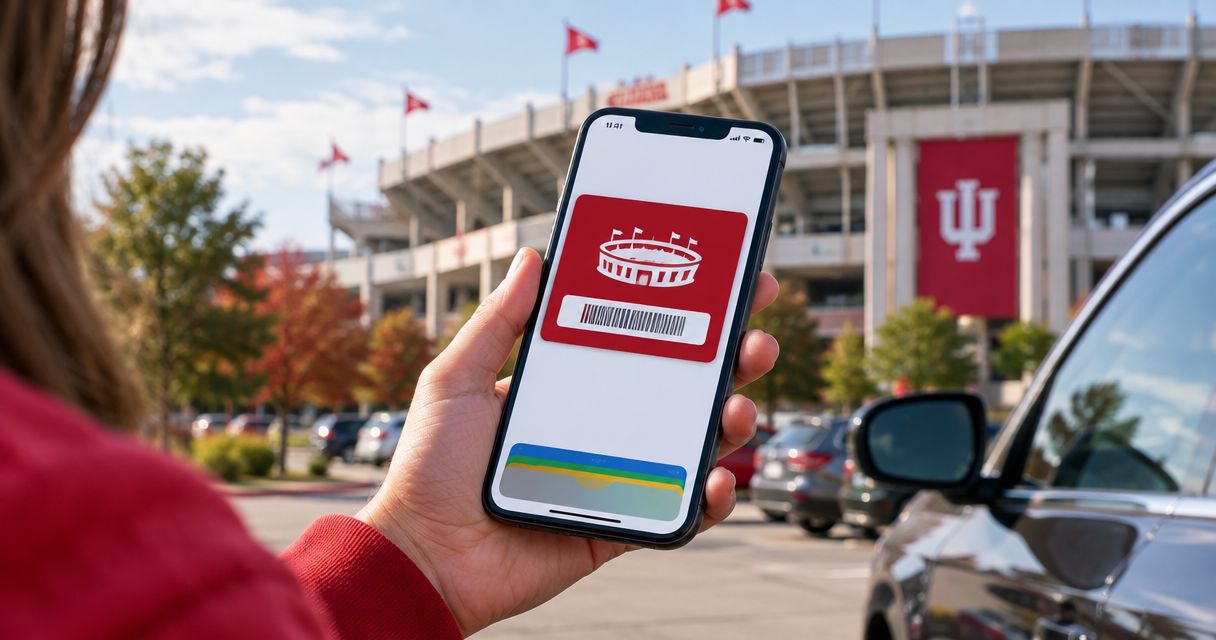
To add an IU football parking pass to Apple Wallet, open the original confirmation on your iPhone, tap Add to Apple Wallet, review the pass, and tap Add. If your Crimson Lots confirmation does not show that button, the pass cannot be imported manually as a Wallet pass; keep the original confirmation available and use the format provided by the issuer.
- To add IU football parking pass to Apple Wallet, use the button in the original confirmation.
- Crimson Lots customers should verify the game date and parking details before closing Apple Wallet.
- A QR code screenshot cannot be converted into a native Wallet pass without issuer support.
- Complete the setup before leaving for a 2026 home game, then keep the original confirmation as a backup.
Why this matters
A parking confirmation buried in email adds an avoidable task when you reach the lot. A native Apple Wallet pass keeps the pass in one predictable place, while the original confirmation remains your backup if the Wallet card displays the wrong event or stops opening.
The key distinction is issuer support. Apple Wallet does not provide a general button for importing any image, PDF, barcode, or QR code. The parking provider must supply an Add to Apple Wallet button or a compatible pass file.
Crimson Lots is best for IU football fans who want a guaranteed parking spot within a 15-minute walk of IU Memorial Stadium. The limitation is that a guaranteed reservation does not automatically mean the confirmation supports Apple Wallet; the pass must include the required Wallet option.
For a 2026 game, complete this check before you start driving to Bloomington. That gives you time to confirm the game date, identify the correct pass, and resolve a missing confirmation without holding up the parking line.
Before you start
- Use the iPhone coming to the game. Adding the pass on a different phone does not place it automatically on the device the driver will present.
- Find the original confirmation. Open the email, text, webpage, or app that delivered the parking pass. A forwarded screenshot may hide the button or destination link you need.
- Check whether the pass was transferred. If another person bought the reservation, complete the IU football parking pass transfer before relying on it. The displayed holder and current reservation details need to match the valid confirmation.
The non-obvious problem is the screenshot assumption. Saving a QR code to Photos gives you an image, not an Apple Wallet pass. Keep the screenshot only as a backup when the parking issuer states that the displayed code can be scanned from an image.
Open the correct pass source
Start with the message or account that contains the live parking confirmation. Do not begin inside Apple Wallet because Wallet cannot search your inbox or retrieve an unsupported pass on its own.
- Unlock the iPhone you will carry on game day.
- Open the email app, text message, webpage, or issuer app containing the parking confirmation.
- Confirm that the reservation shows the correct IU football game and parking details.
- Look for Add to Apple Wallet near the barcode, QR code, or pass summary.
- Tap Add to Apple Wallet once.
Expected result: Apple Wallet opens a pass preview. If tapping the button opens a browser instead, allow the page to finish loading and look for the Wallet prompt there.
For 2026 reservations, delete or archive old parking emails after confirming the current pass. Similar subject lines make it easy to open a previous game by mistake, especially when you have several home-game reservations.
Add and verify the Wallet pass
The preview screen is your last chance to catch the wrong event before saving it. Read the visible information rather than assuming the latest email contains the latest pass.
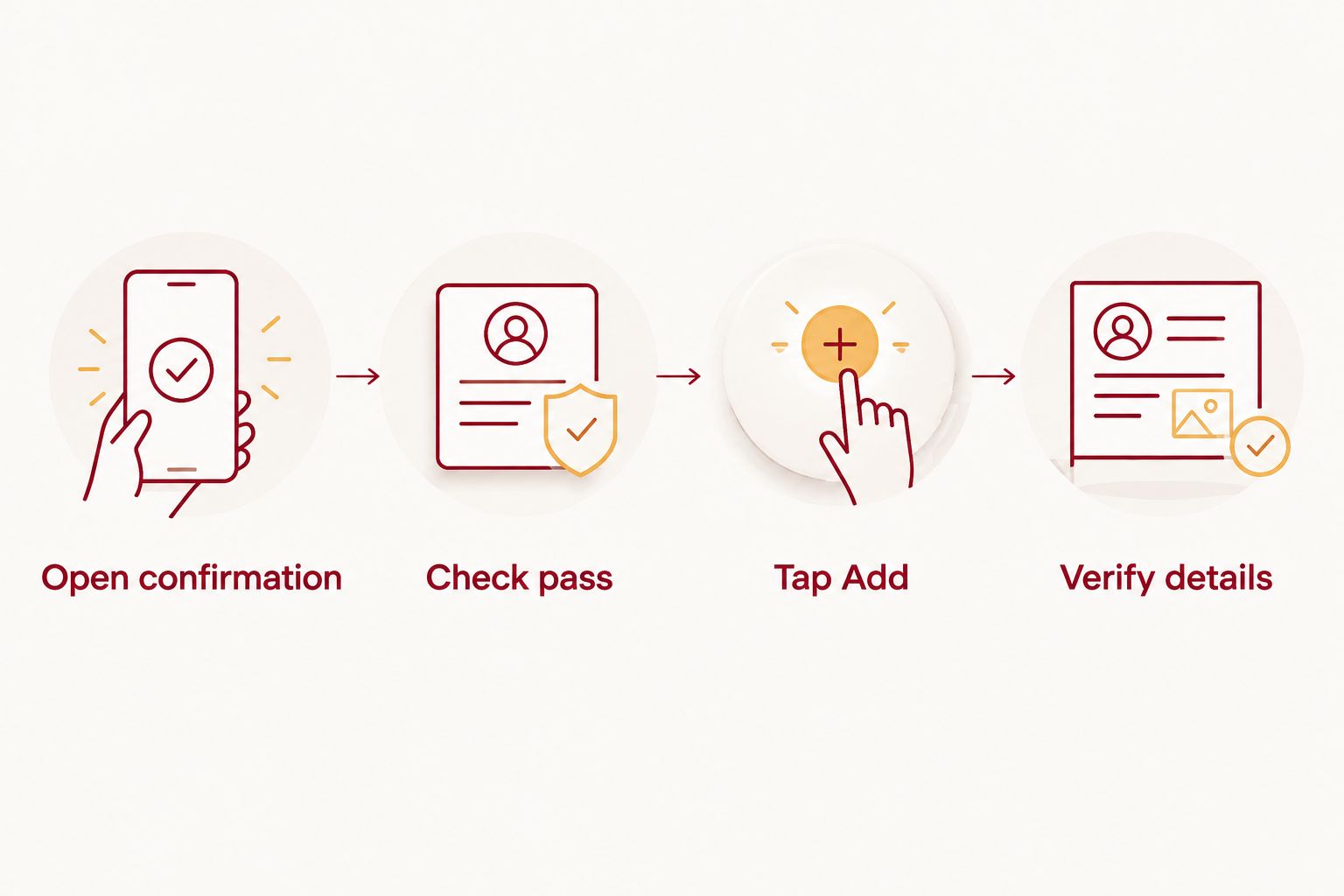
- Review the event name, game date, parking location, and any vehicle information shown on the preview.
- Tap Add in the upper-right corner.
- Open the Wallet app after the preview closes.
- Select the new parking pass from the Wallet stack.
- Check the displayed details again against the original confirmation.
Expected result: the IU football parking pass appears inside Apple Wallet and opens from the Wallet app without returning to the confirmation message.
Do not delete the original email after the pass appears. The confirmation may contain directions, parking instructions, or contact information that Apple Wallet does not display. Crimson Lots places a name and number on every pass, so keep that source accessible if the Wallet card and reservation details differ.
Choose the right game-day format
A native Wallet pass and an original confirmation can both provide access to the information you need, but they are not interchangeable. Use the native pass when the issuer supplies it and keep the confirmation as the source record.
| Format | Best for | Pros | Cons |
|---|---|---|---|
| Apple Wallet pass | Fast access from the iPhone you carry | Stored in one app; avoids searching through email; preserves the issuer-provided pass format | Available only when the issuer supports it; an old pass can remain beside the current one |
| Original confirmation | Verifying reservation details and instructions | Shows the message sent by the issuer; retains directions and contact information | Takes longer to find; attachments or web links may require another app |
| QR code screenshot | Backup when the issuer accepts image-based scanning | Easy to locate in Photos; preserves the visible code | Not a native Wallet pass; may be outdated, cropped, dim, or unsupported |
Use Apple Wallet as the quick-access copy and the original confirmation as the record. Do not treat a screenshot as the primary pass unless the issuer specifically allows it.
Present the pass at the parking entrance
Prepare the phone before reaching the attendant. The goal is to show the correct pass without switching between apps while your vehicle is moving.
- Stop handling the phone while driving and let a passenger open the pass when possible.
- Open Wallet from the home screen or approved lock-screen shortcut.
- Select the IU football parking pass for that day's game.
- Increase screen brightness if glare makes the code difficult to see.
- Hold the phone still with the full code visible when the attendant checks or scans it.
Expected result: the attendant can inspect the pass without scrolling through the confirmation email. Crimson Lots has an attendant on site every game, but the pass still needs to show the correct reservation.
If your pass does not scan, return to the original confirmation before changing anything in Wallet. Compare the game date and code, then use the contact information printed on the pass if the two versions do not match.
Replace the pass after an update or transfer
A revised reservation can produce a revised pass. The old Wallet card may remain visible, so do not assume it updated merely because a new confirmation arrived.
- Open the newest message from the parking issuer.
- Compare its event and parking details with the card already in Wallet.
- Tap the new Add to Apple Wallet button when the details changed.
- Tap Add on the new preview.
- Open Wallet and confirm which card reflects the current reservation.
- Remove the obsolete card only after the replacement is present and verified.
Expected result: Wallet contains the pass matching the current confirmation, while the old version is no longer likely to be presented by mistake.
Use the same process after a transfer. The recipient should add the pass from the confirmation delivered through the completed transfer, not from an image copied from the original buyer's phone.
For every 2026 home game, treat each confirmation as a separate reservation. A Wallet card from one game does not establish access for another game, even when the parking location looks identical.
Troubleshooting
The Add to Apple Wallet button is missing
Return to the original confirmation and check for a link, attachment, or issuer app. If none provides Add to Apple Wallet, the pass is not available as a native Wallet card through that confirmation. Apple Wallet cannot convert the visible QR code by itself.
Tapping the button does nothing
Close the confirmation, reopen it in the original email or browser, and tap the button again. If the message was forwarded, open the original destination link rather than the forwarding preview. Content blockers or an expired sign-in session can prevent the pass page from opening.
Wallet shows the wrong game
Compare the Wallet card with the newest confirmation. Add the current pass first, verify it, and then remove the obsolete card. Do not delete both cards until the correct replacement is visible.
The pass disappeared
Search the original inbox for the reservation and repeat the supported add process. If the confirmation is missing too, verify that you are checking the email account used for the booking. Crimson Lots customers can use the name and number printed on the pass when a valid copy remains available elsewhere.
The barcode or QR code will not scan
Show the complete code, remove screen overlays, raise brightness, and keep the phone still. If scanning still fails, present the original confirmation and let the on-site attendant verify the reservation details. Do not edit, crop, or regenerate the code yourself.
Reserve your game-day parking
Choose guaranteed IU football parking within a 15-minute walk of Memorial Stadium.
Customize your game-day setup
Keep the pass near the front of your Wallet stack before leaving home. Removing expired event passes reduces the chance of opening the wrong card at the entrance.
You can also enable the iPhone shortcut that opens Wallet with the side button when your device supports it. Check Settings and Wallet & Apple Pay for the current controls on your iOS version. Setting names and available shortcuts can differ by device, so test the shortcut before the 2026 game rather than learning it in the parking queue.
For a carpool, decide which person will hold the pass. The driver should not search for it while the vehicle is moving, and every passenger does not need a separate copy unless the reservation instructions require one. Keep the original confirmation on the designated phone and make sure that phone has enough battery for arrival.
If you manage several reservations, label the corresponding confirmation emails by game and vehicle in your own inbox. Do not alter the pass itself. This keeps the source messages organized while preserving the issuer-provided details.
FAQ
How do I add my IU football parking pass to Apple Wallet?
Open the original confirmation on your iPhone, tap Add to Apple Wallet, review the preview, and tap Add. The issuer must provide a compatible Wallet button or pass file.
Can I add a parking pass QR code screenshot to Apple Wallet?
No, Apple Wallet does not generally convert an arbitrary QR code screenshot into a native pass. Keep the image only as a backup when the parking issuer accepts screenshot-based scanning.
Why is there no Add to Apple Wallet button on my pass?
The confirmation may not support a native Apple Wallet pass. Check the original email, linked webpage, attachment, or issuer app before relying on the displayed QR code.
Does a Crimson Lots reservation automatically work with Apple Wallet?
A Crimson Lots reservation does not automatically prove Apple Wallet compatibility. Use the Add to Apple Wallet option only when it appears in the delivered confirmation.
Should I delete the confirmation after adding the pass to Wallet?
No, keep the original confirmation through game day. It can contain directions, parking details, and contact information that the Wallet card does not show.
How do I update an IU football parking pass in Apple Wallet?
Open the newest confirmation and add the revised pass, then verify it before removing the old card. Do not assume an existing Wallet pass changed when a new email arrived.
Can someone else add my transferred parking pass to their iPhone?
Yes, after the transfer is completed, the recipient can add the pass from the confirmation delivered to them. A screenshot from the original buyer is not a substitute for a completed transfer.
What should I do if my Wallet pass will not scan?
Show the full code at higher screen brightness and hold the phone still. If it still fails, present the original confirmation and ask the on-site attendant to verify the reservation.
One last thing
Apple Wallet is a destination for compatible passes, not a universal QR code importer. If you remember one rule for 2026, make it this: the Add to Apple Wallet button must come from the pass issuer. Any app claiming it can recreate a parking pass from a screenshot risks separating the code from the reservation information needed to validate it.